Help & Reference
Everything the Portfolio module can do, one section per screen.
Getting started
What Portfolio is for
A single ledger for everything you own — NEPSE-listed shares, private ventures, and the cash behind both — revalued continuously against live quotes.
Every number on the Dashboard, in Insights, or in NAV History is derived from the transactions in All Transactions. If a figure looks wrong, the fix is almost always a missing or mis-entered transaction, not a setting.
Stocks and Ventures are the same idea, priced differently: a stock's value comes from NEPSE's live last-traded price, a venture's from whatever valuation you last recorded for it. One portfolio can also represent a family, not just you — see the Portfolio Manager account type below and Funds.
Getting started
Roles & access tiers
Two separate ideas both get called “role” here — keeping them apart makes the rest of the manual make sense.
Platform tiers decide whether you see admin tools at all: Investor (the default) and Admin (can grant/revoke access and change roles from Portfolio Admin).
Account type, picked when you request access, describes your own use case: General Investor (one personal portfolio), Portfolio Manager (manages several portfolios for others, e.g. a family fund), or Shareholder/Viewer (read-only on someone else's portfolio).
A third layer, portfolio membership, is scoped to one portfolio at a time from its own Access page: Chairman (full edit) or Shareholder (view-only).
Getting started
Requesting access
Portfolio access is admin-gated, or self-service by picking a plan.
Open the Portfolio module without access and you land on a request screen instead of the Dashboard. Pick the account type that matches your use case, submit the request (or choose a plan where self-service is enabled), and an Admin grants access from Portfolio Admin.
Getting started
Appearance & dark mode
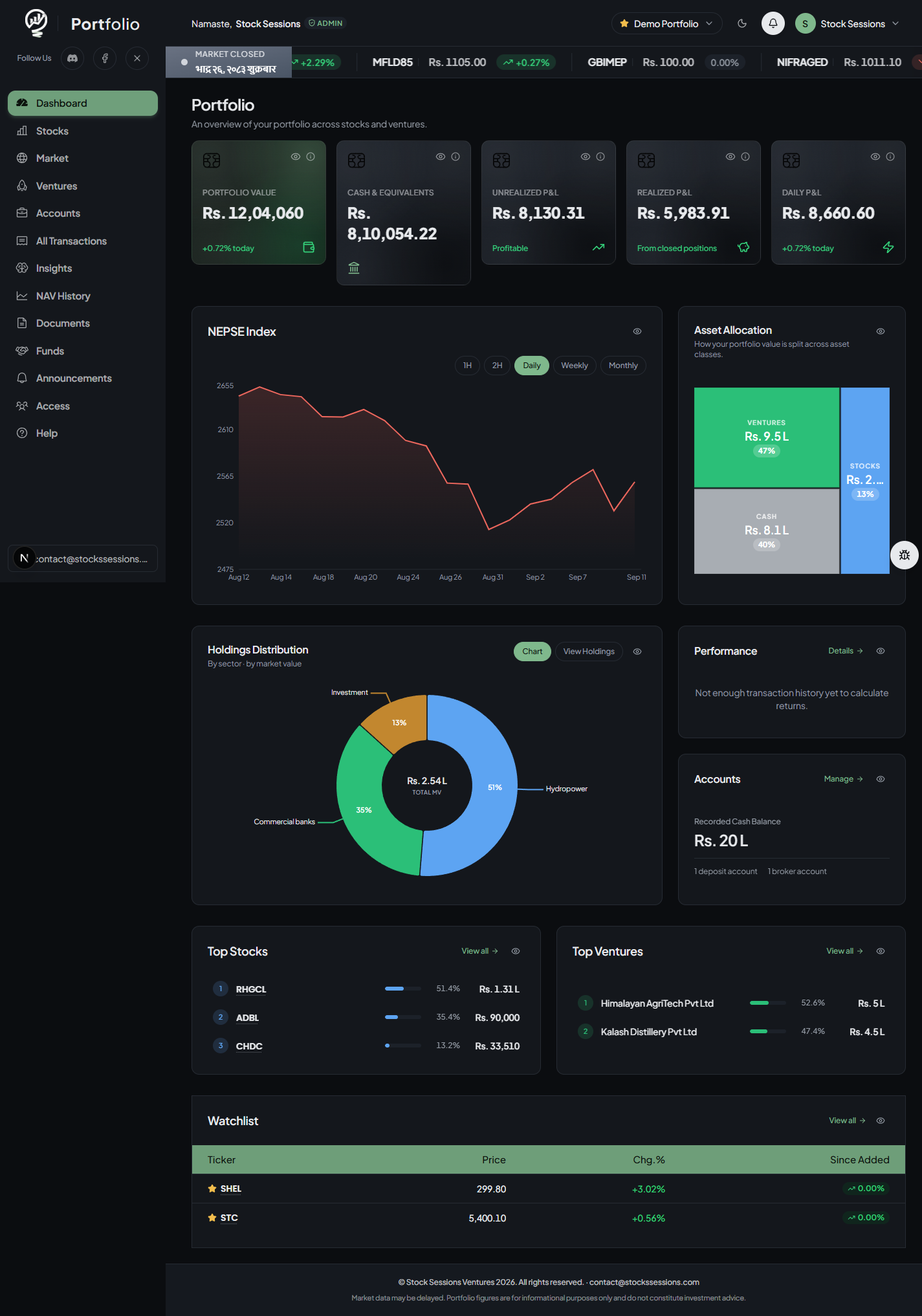
The whole module follows a light/dark toggle in the header, independent of your device setting.
The sun/moon button next to the notification bell switches every screen — Dashboard, charts, dialogs, the market ticker. Your choice is remembered per browser; a fresh browser defaults to your OS preference.
Daily use
Dashboard
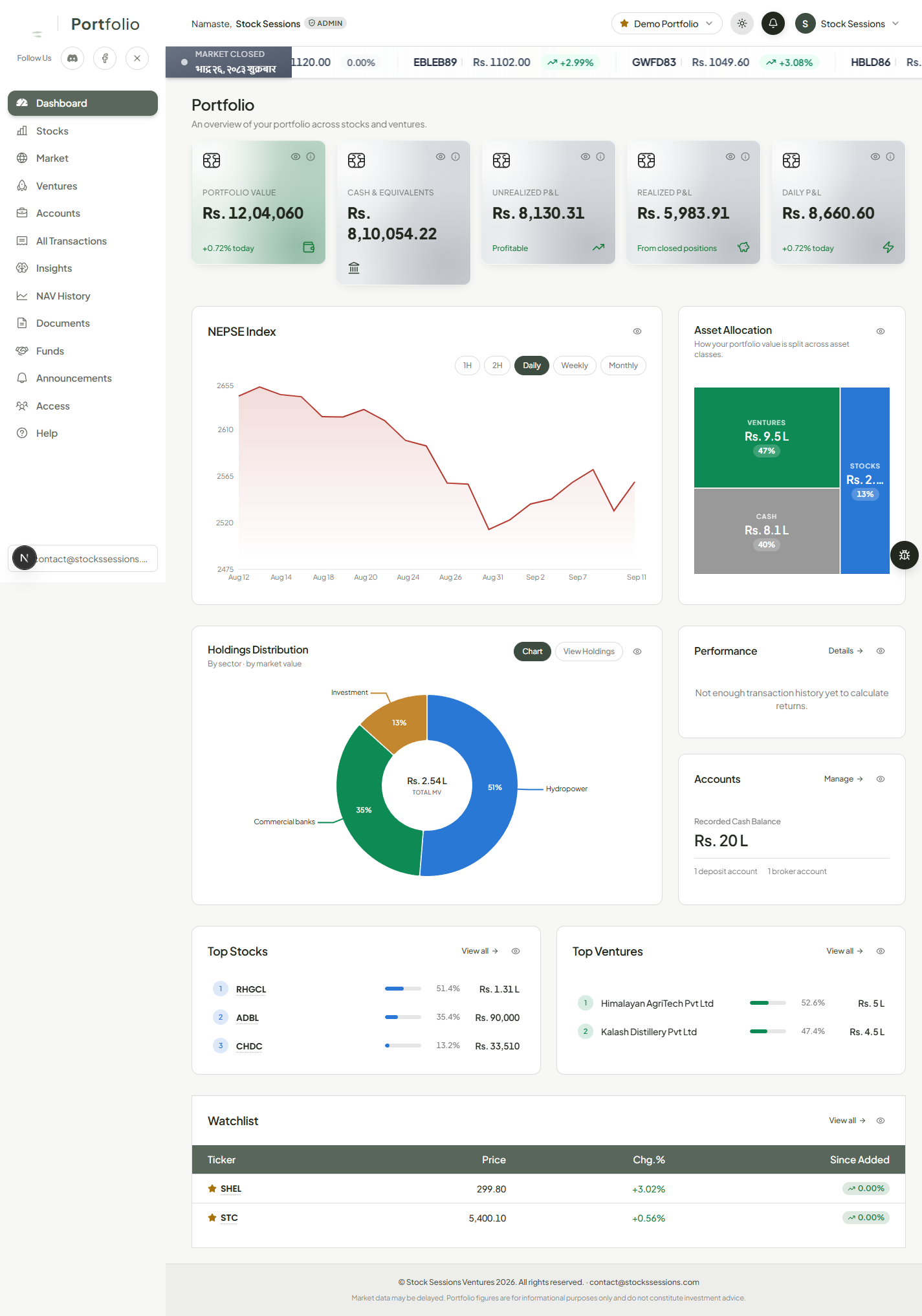
The one page that answers “how am I doing” — a live rollup of everything recorded elsewhere.
Every card has an eye icon that hides it (remembered per browser); the metric tiles also mask their own figure, useful when sharing your screen. Portfolio Value, Cash & Equivalents, Unrealized/Realized/Daily P&L lead the page, followed by the NEPSE Index chart, an Asset Allocation treemap, a Holdings Distribution donut, a Performance snapshot, an Accounts summary, Top Stocks/Ventures, and a Watchlist preview. A family/group portfolio adds a Members breakdown.
Holdings
Stocks
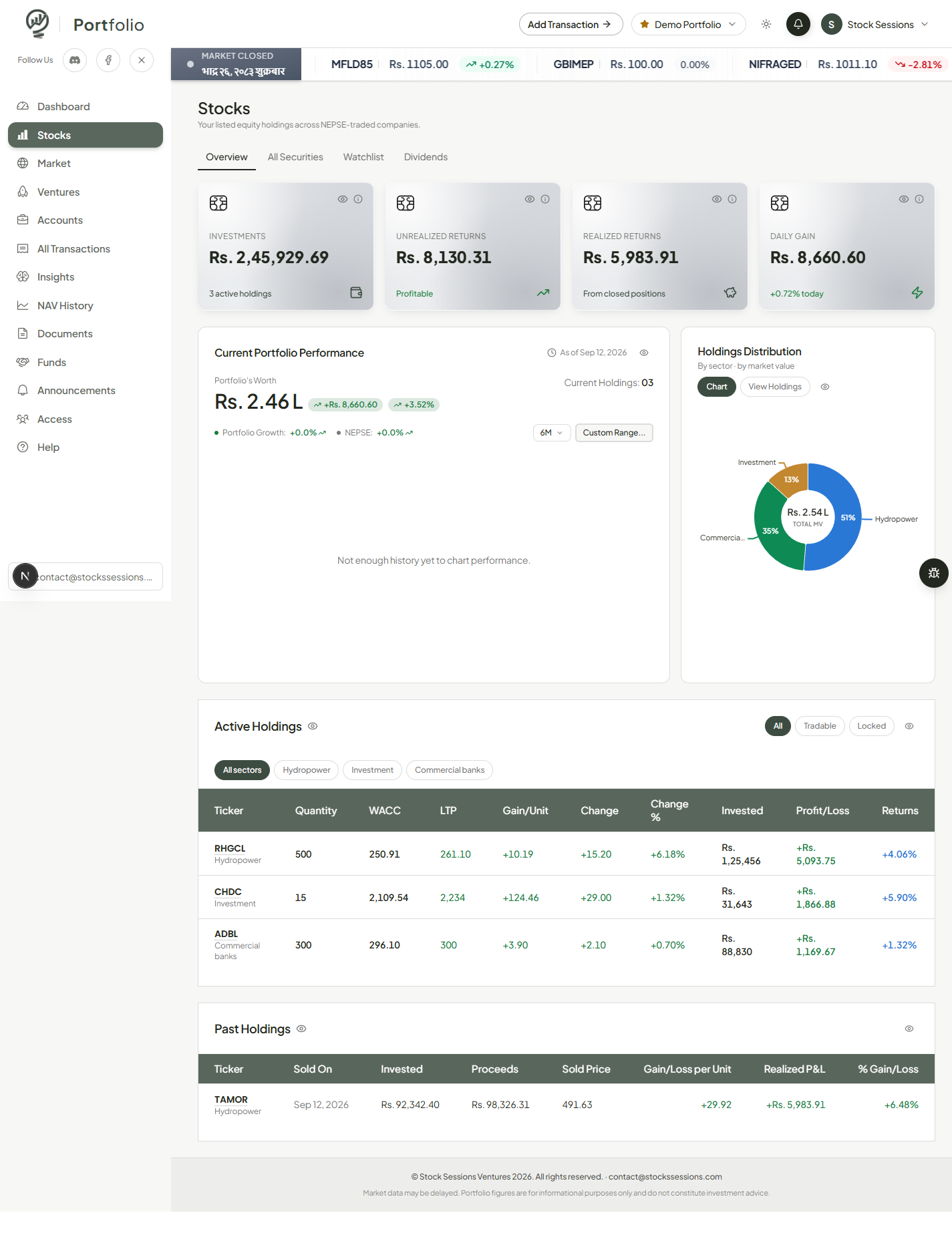
Every NEPSE-listed position you hold or have held, priced live — Overview, All Securities, Watchlist, Dividends.
Overview pairs stock-only metric tiles with a chart indexing your stock portfolio's growth against the NEPSE index, plus Active/Past Holdings tables (WACC, LTP, gain/unit, returns). All Securities is every listed company, held or not. Watchlist tracks tickers you're watching without owning. Dividends lists every cash/bonus/right-share dividend recorded.
Holdings
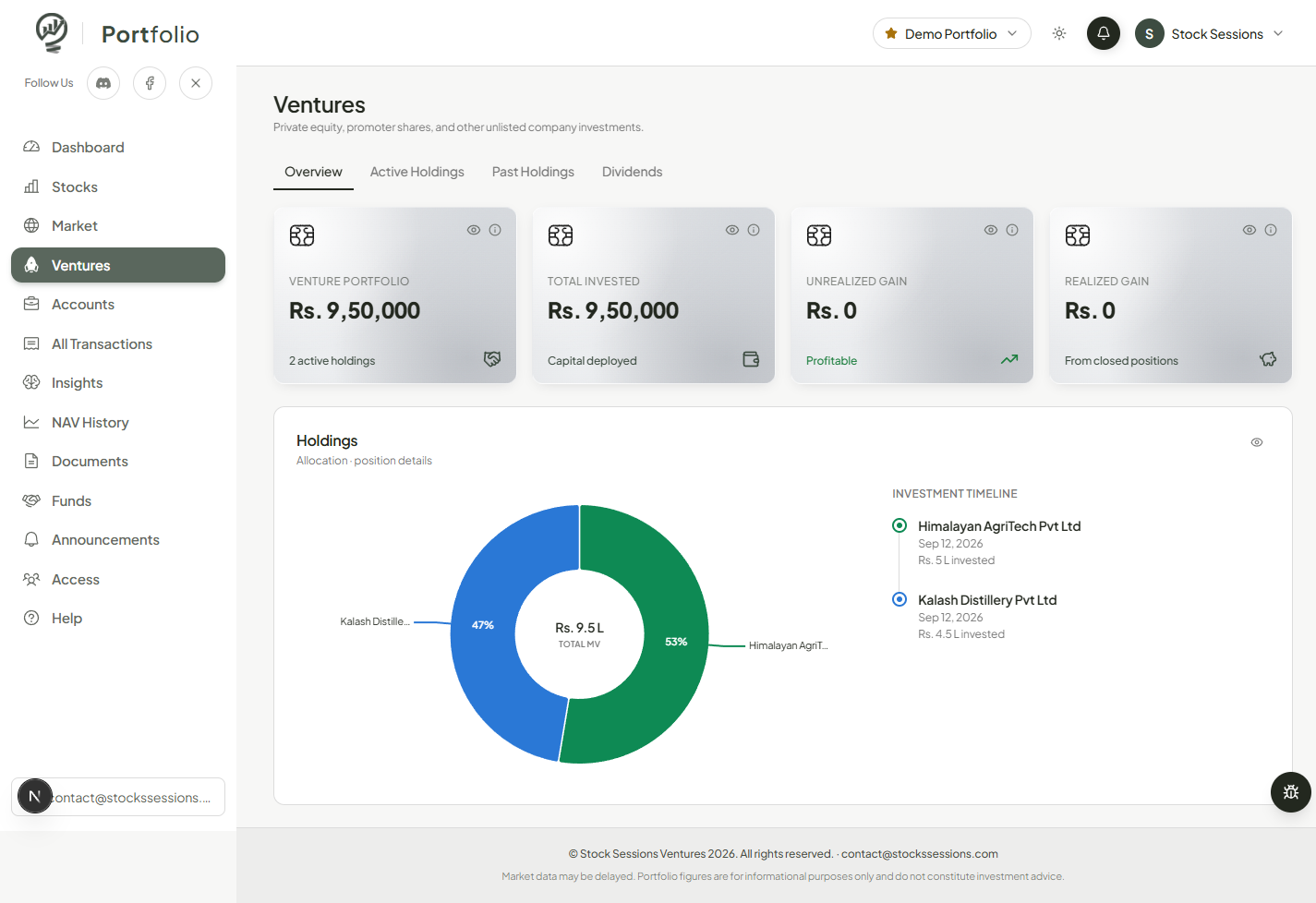
Ventures
Private equity, promoter shares, and other unlisted investments — the same accounting as Stocks, without a live price feed.
A venture's value comes from its most recent recorded valuation, not a live quote — everything downstream (unrealized gain, allocation share) treats it identically to a stock. The Overview tab adds an Investment Timeline, since these tend to be long-hold positions rather than actively traded ones.
Holdings
Market
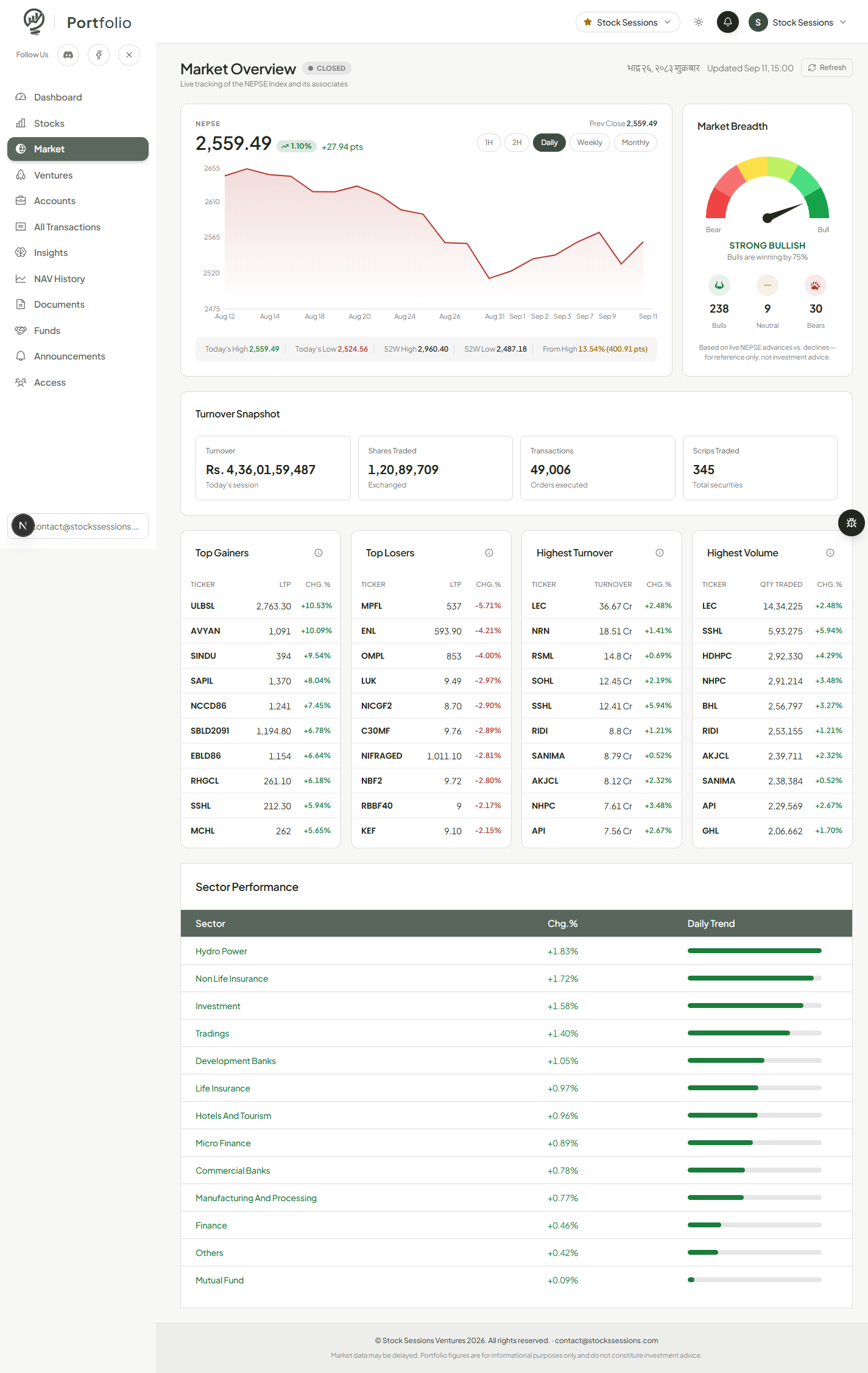
A live NEPSE market overview, independent of anything you personally hold.
The index chart with today's high/low and 52-week range, a Market Breadth gauge from live advance/decline counts, a Turnover Snapshot, Top Gainers/Losers/Turnover/ Volume, and Sector Performance.
Money
Accounts
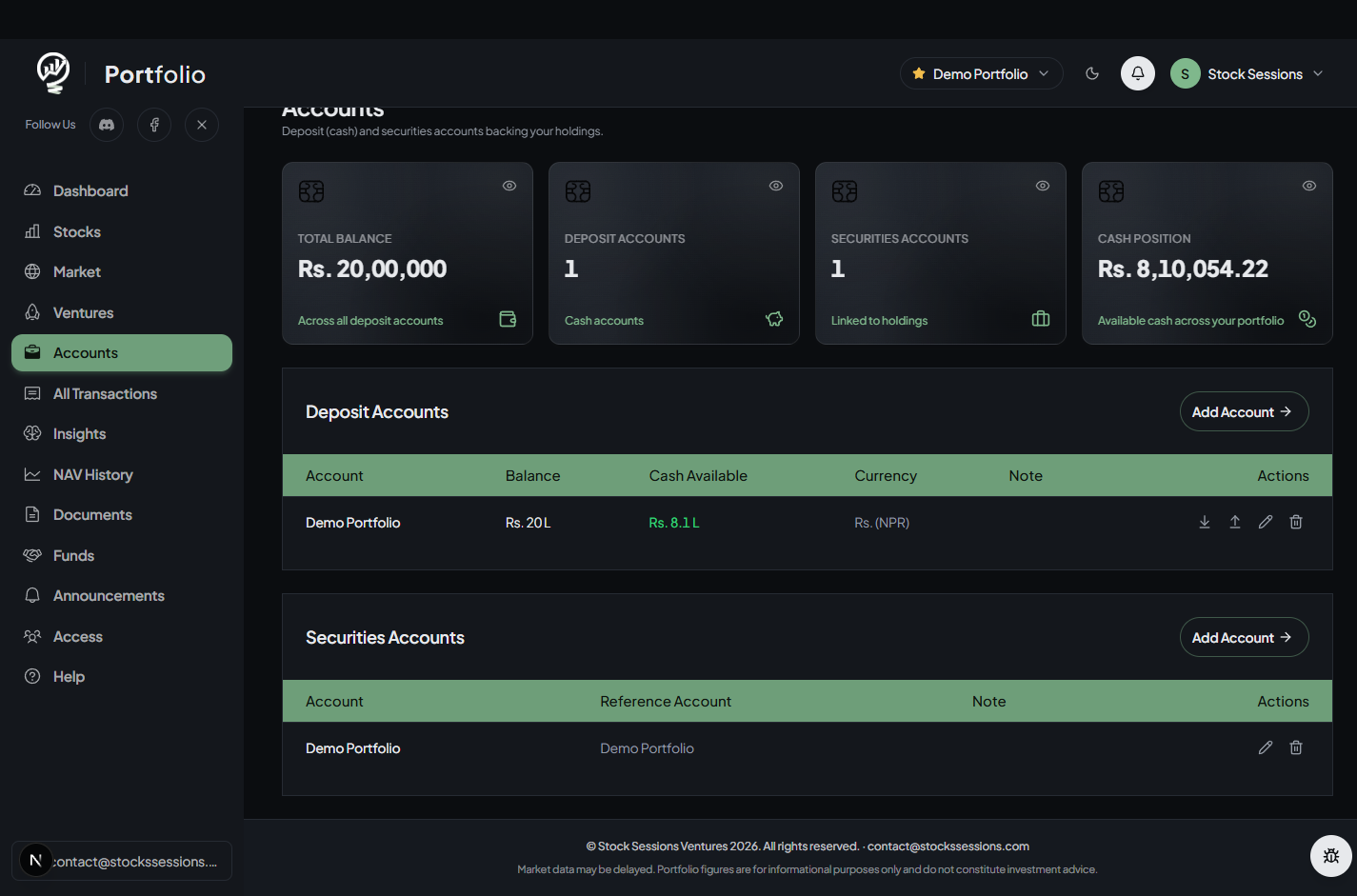
The deposit (cash) and securities (broker/DP) accounts that sit behind every holding.
A Deposit Account holds cash with a recorded balance; a Securities Account is your broker/DP account, linked to a reference deposit account.
A deposit account's balance is whatever you last recorded — it doesn't auto-reconcile against transactions. Use the Dashboard's Cash & Equivalents tile for the real, live-derived spendable-cash figure.
Money
All Transactions
The ledger — every buy, sell, dividend, bonus share, right share, deposit, and withdrawal, in one searchable table.
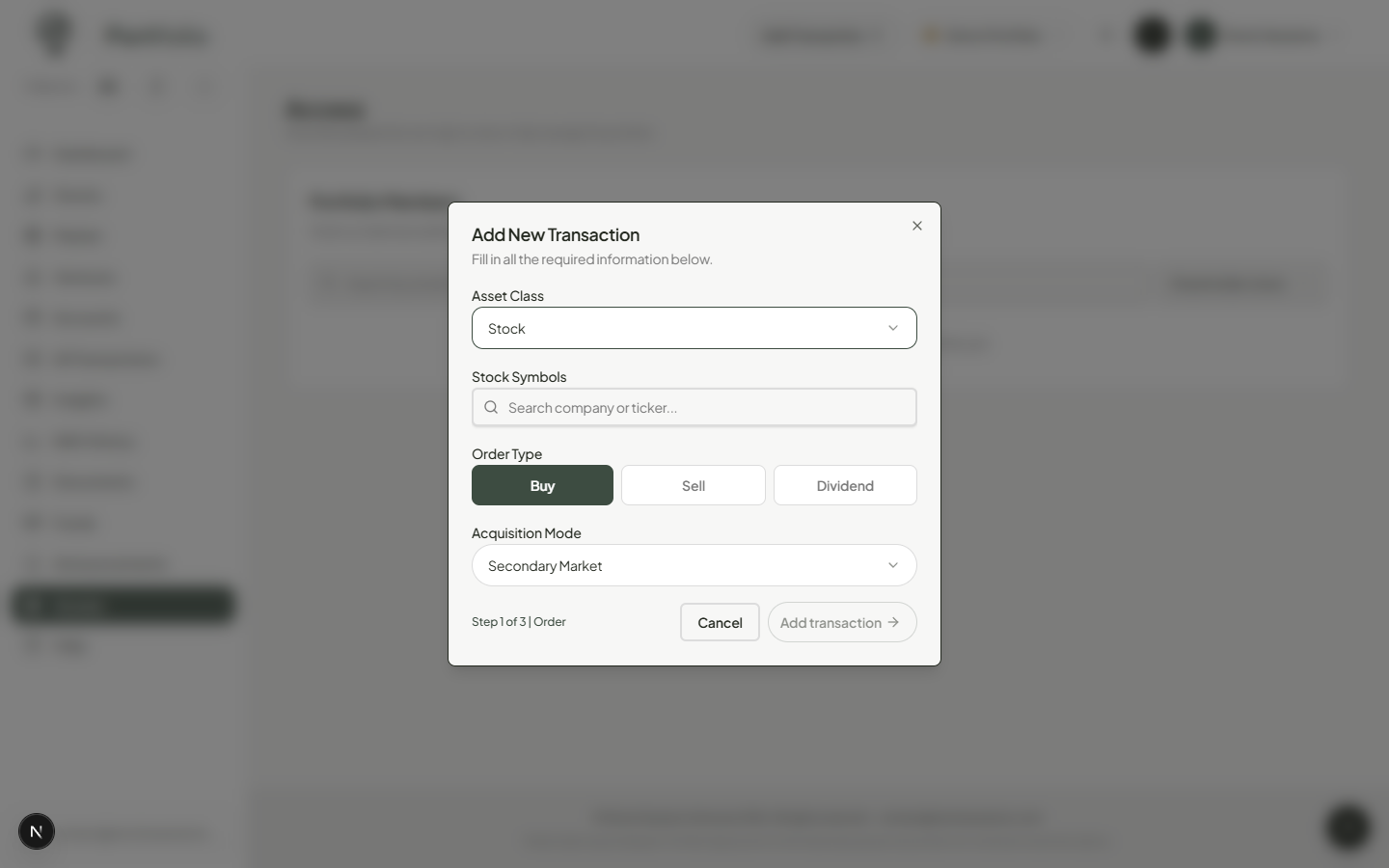
Filter by asset class/action/mode, restrict to a date range, export to CSV, or sync automatically via a connected MeroShare account or parsed broker emails. Add Transaction opens a three-step wizard: asset class and order type, the order's specifics, then confirmation.
Analysis
Insights
Six report tabs reading from the same ledger: Statement of Assets, Performance, Trades, Dividends, Logbook, Playbooks.
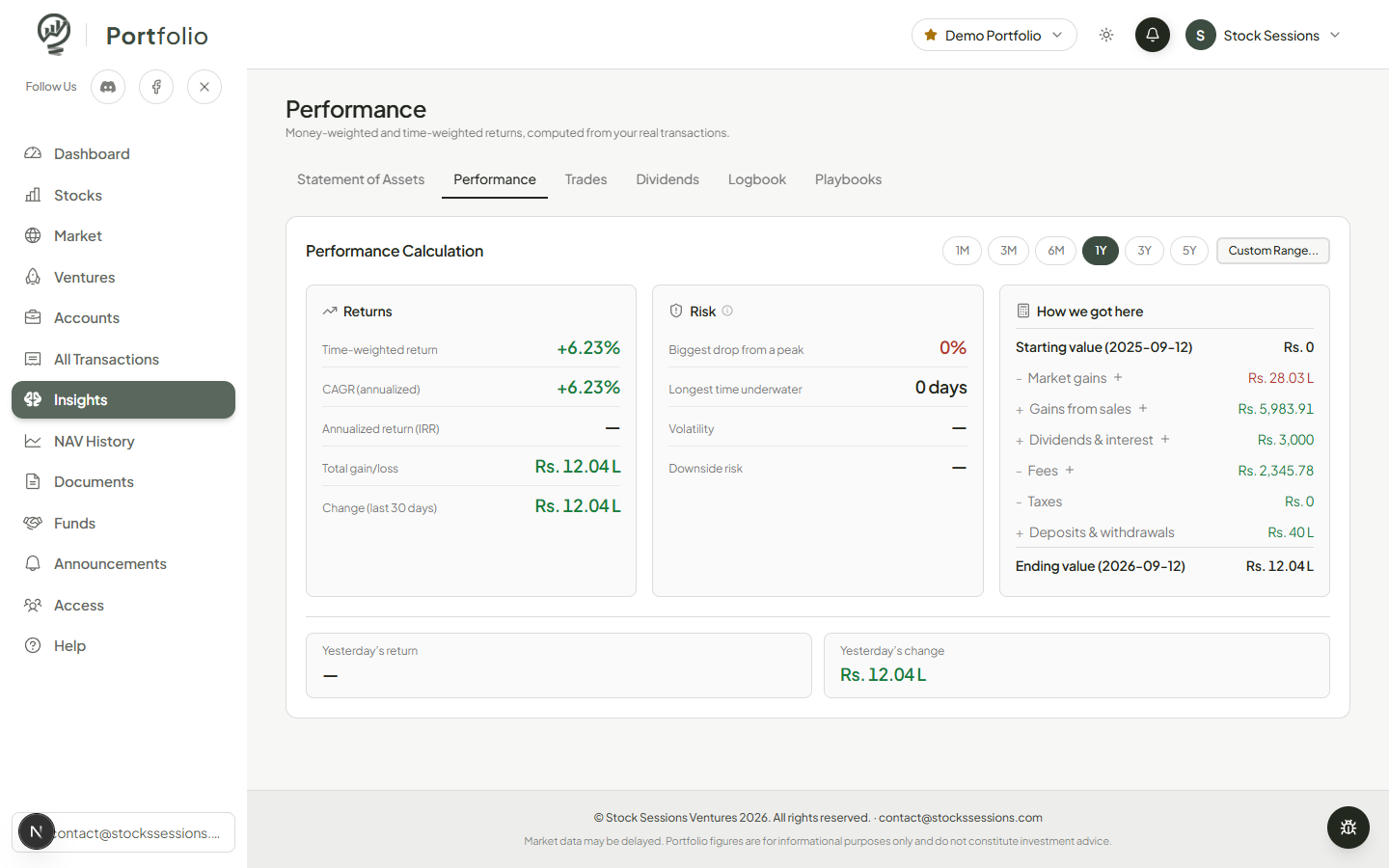
Statement of Assets lists every current holding with its exact share of the total portfolio. Performance computes time-weighted return (fair for judging stock-picking), IRR (money-weighted, sensitive to deposit/withdrawal timing), drawdown, and a waterfall from starting to ending value.
Analysis
NAV History
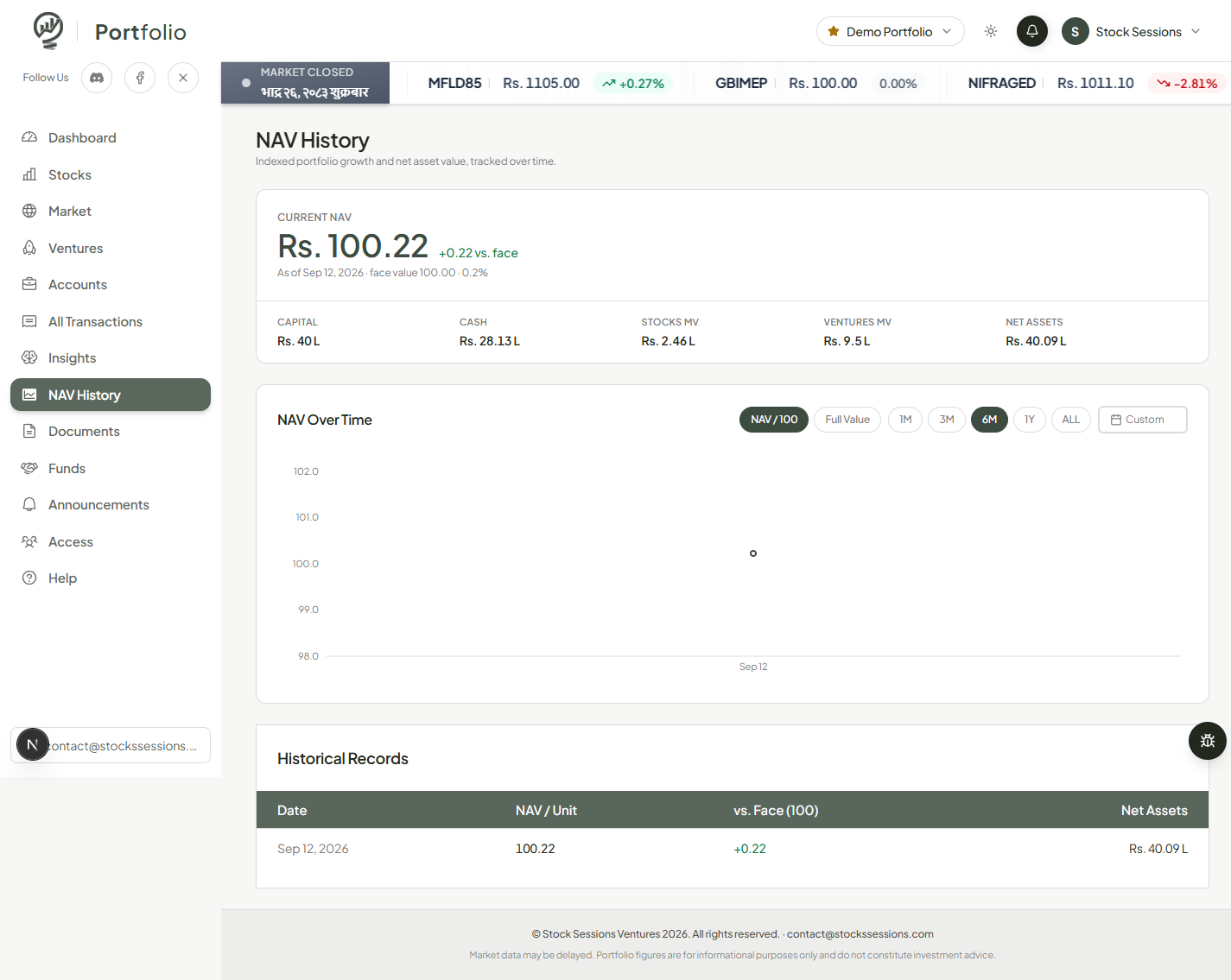
ManagerIndexed net asset value per unit — the fund-style way to measure growth for pooled capital.
Every portfolio starts at a face value of 100.00 per unit; NAV/Unit tracks growth against that baseline independent of how much capital has since been added. Only visible to Portfolio Manager accounts.
Collaboration
Documents
ManagerQuarterly and annual filings, published as PDFs for anyone with access to this portfolio.
A lightweight way to hand a shareholder the same quarterly report you'd otherwise email.
Collaboration
Funds
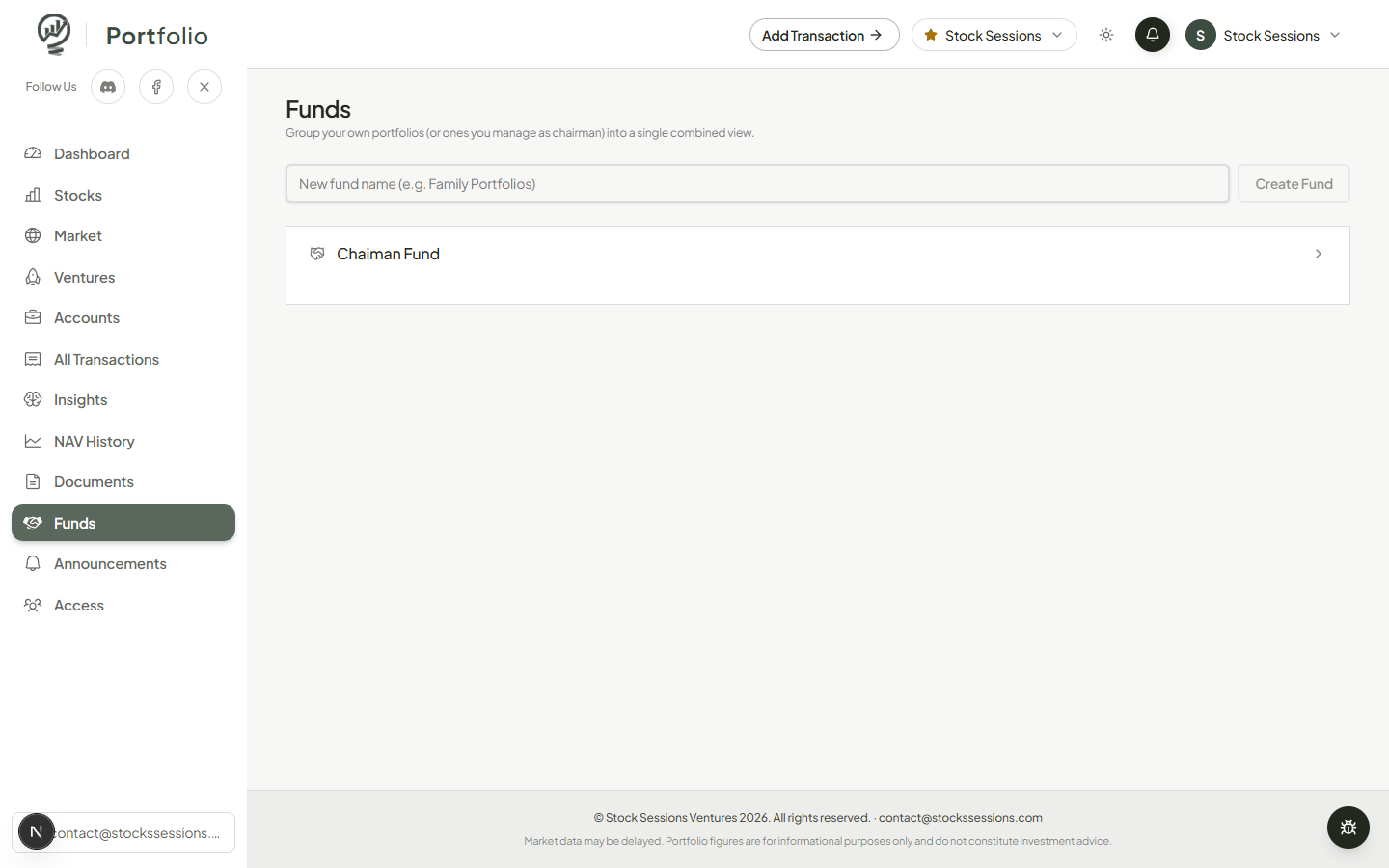
ManagerGroup your own portfolios — or ones you manage as chairman — into one combined view.
Not a new account or a new place to hold assets — a saved grouping of existing portfolios, so the combined total shows up as one number.
Collaboration
Access
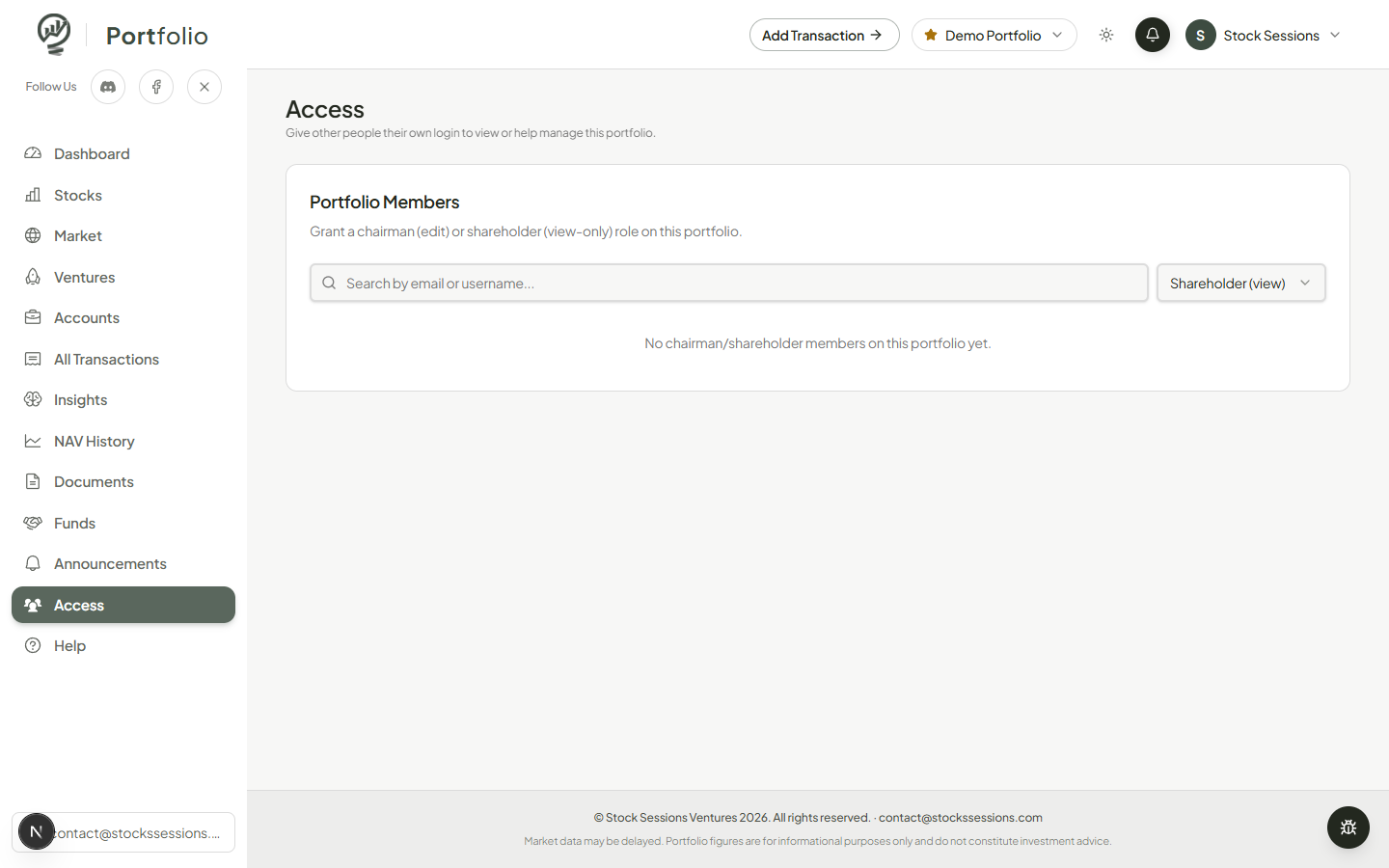
Give other people their own login to view or help manage this specific portfolio.
Only the portfolio's owner (or a platform Admin) can manage this list. Search by email or username, choose Chairman (edit) or Shareholder (view-only).
Collaboration
Announcements
Release notes and product updates for the module, in one feed.
The bell icon in the header carries the same feed as a dropdown preview.
Account
Profile & settings
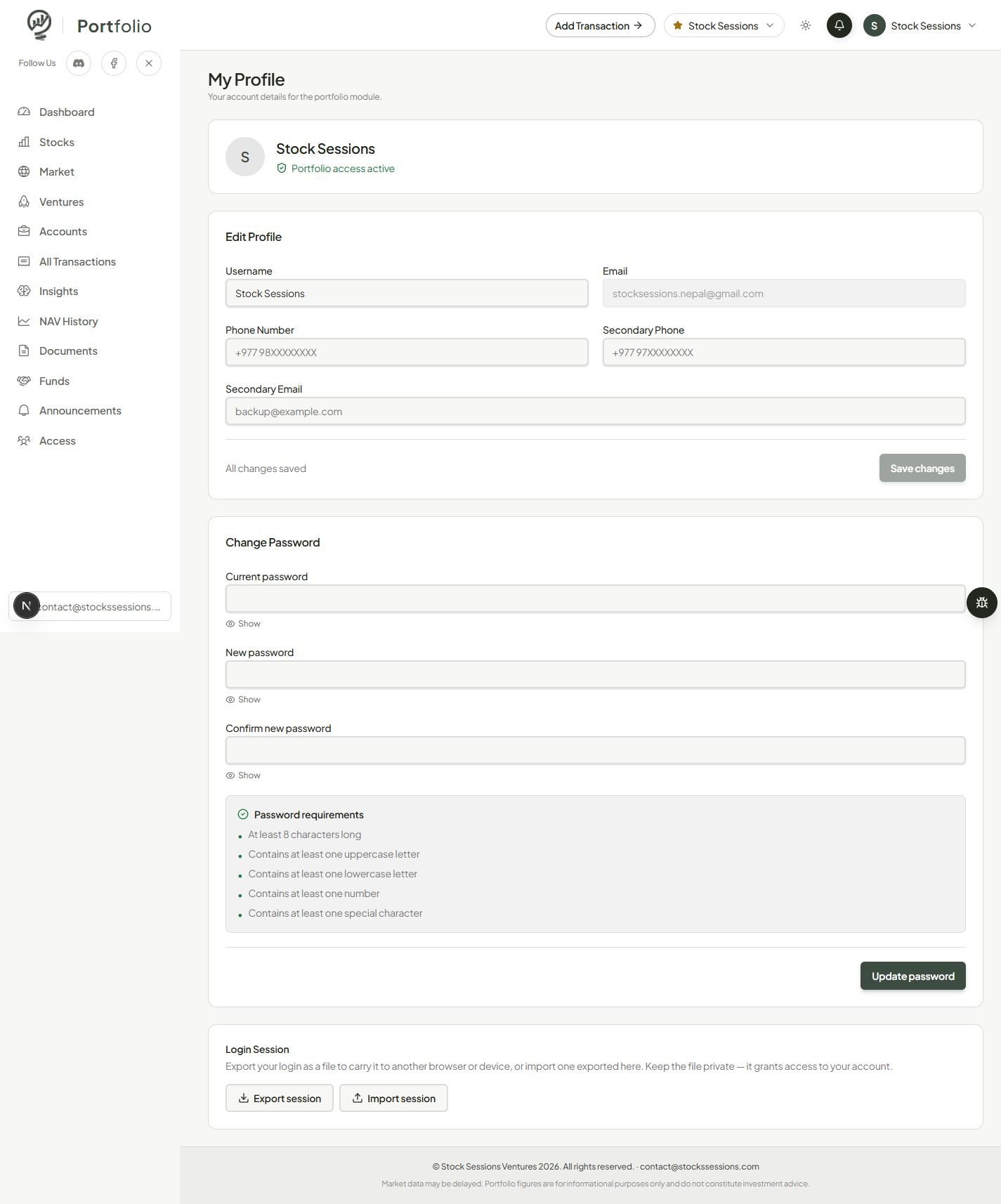
Your account details for the module, editable in place.
Username, phone numbers, and secondary email are editable; the primary email is fixed. Change Password enforces the requirements shown in its checklist. Login Session exports your active login to a file for another browser or device — treat it like a password.